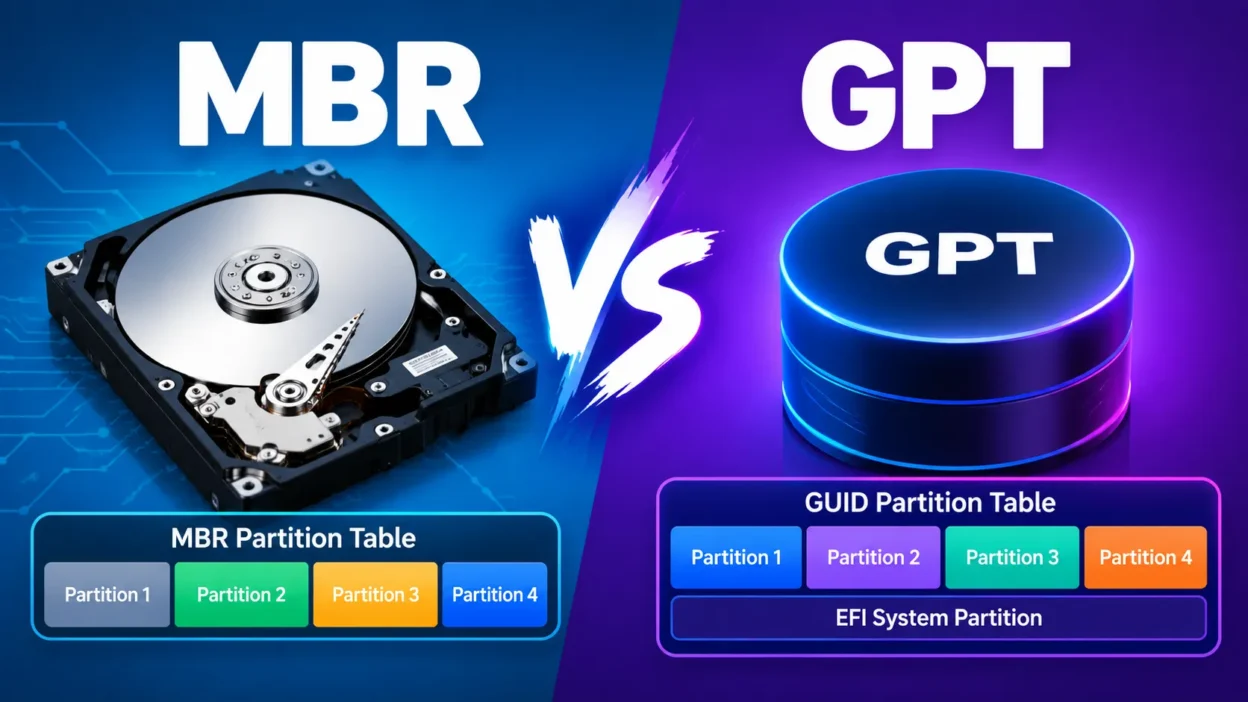
MBR and GPT are two disk partition styles used to organize storage drives. MBR is an older partitioning method associated with legacy BIOS and supports up to 2 TB disks and four primary partitions.
GPT is the modern standard designed for UEFI systems, supports disks larger than 2 TB, and allows many more partitions.
For most modern Windows PCs, GPT is the appropriate choice.
Key Takeaways
- MBR is an older partition style commonly used with Legacy BIOS systems.
- GPT is designed for modern UEFI-based computers.
- MBR has a practical 2 TB disk limit and supports up to four primary partitions in the standard Windows configuration.
- GPT supports disks larger than 2 TB and can support up to 128 partitions in Microsoft’s Windows UEFI layout.
- For a modern Windows 11 PC, UEFI and GPT are normally the appropriate combination.
What Is the Difference Between MBR and GPT?
When you initialize a new hard drive or SSD, Windows needs a way to organize information about the partitions on that drive. That organization is called the partition style.
The two styles you will encounter most often are MBR, which stands for Master Boot Record, and GPT, which stands for GUID Partition Table.
MBR is the older design. It was created for systems using traditional BIOS firmware and has several limitations. GPT is newer and works with modern UEFI firmware, making it better suited to current computers and large-capacity drives.
One important point: MBR and GPT are partition styles, not file systems. NTFS, FAT32, and exFAT are file systems. You can therefore have an NTFS volume on a GPT disk or an MBR disk.
MBR at a Glance
MBR stores partition information in the beginning portion of the disk and uses a design that dates back to the era of traditional BIOS-based PCs.
On Windows, a basic MBR disk can have up to four primary partitions. An extended partition can be used when more logical volumes are needed. MBR also has a roughly 2 TB addressable-disk limitation under its traditional 32-bit LBA design.
GPT at a Glance
GPT uses globally unique identifiers for partitions and is designed for modern UEFI systems.
It avoids MBR’s traditional 2 TB limitation and provides a much larger partitioning structure. Microsoft’s UEFI/GPT guidance supports up to 128 partitions on a GPT disk in the standard Windows configuration. GPT also stores backup partition information and uses CRC protection to help detect partition-table corruption.
MBR vs GPT: Key Differences
| Feature | MBR | GPT |
|---|---|---|
| Full name | Master Boot Record | GUID Partition Table |
| Typical firmware pairing | Legacy BIOS | UEFI |
| Disk size limitation | About 2 TB | Much larger than 2 TB |
| Primary partitions | Up to 4 | Up to 128 in Windows UEFI layouts |
| Modern Windows PCs | Older/legacy use cases | Standard choice |
| Secure Boot | Not part of the MBR scheme | Works with UEFI/Secure Boot |
| Large drives | Limited | Designed for large drives |
| Partition-table protection | More limited | Backup data and CRC protection |
The biggest practical difference is not simply that GPT is “newer.” It is that GPT and UEFI are designed to work together, while MBR is closely associated with the older BIOS boot model.
Microsoft’s current Disk Management guidance recommends GPT for modern systems with UEFI, especially when large drives or more than four partitions are needed.
MBR vs GPT for Windows 11
For someone installing Windows 11 on a modern PC, the relationship between GPT and UEFI is especially important.
Microsoft lists UEFI firmware with Secure Boot capability among the minimum Windows 11 system requirements.
Windows Setup also explains that when a PC is booted in UEFI mode, the Windows installation drive needs to use GPT. If the computer is booted in legacy BIOS-compatibility mode, MBR can be used instead.
This is why you may see an error such as:
Windows cannot be installed to this disk. The selected disk is not of the GPT partition style.
The message generally means there is a mismatch between the firmware boot mode and the disk’s partition style.
For a typical modern Windows 11 computer, the expected combination is:
UEFI → GPT
Older systems may instead use:
Legacy BIOS → MBR
Changing the partition style alone does not make unsupported hardware compatible with Windows 11. The PC still needs to meet Microsoft’s other requirements, including a compatible processor and TPM 2.0.
Should You Use MBR or GPT for an SSD?
If you are installing an SSD in a modern PC, GPT is generally the appropriate partition style when the computer uses UEFI.
The SSD itself does not require GPT simply because it is an SSD. The choice depends mainly on the computer’s firmware, operating system, boot configuration, and how the drive will be used.
For example, a modern Windows 11 desktop with UEFI would normally use GPT for its Windows system drive.
An older computer that only supports Legacy BIOS may need MBR for a boot drive.
Also, don’t expect GPT by itself to make an SSD faster. Partition style is primarily about how the disk is organized and booted, not about increasing the underlying read/write speed of the storage device.
GPT’s major practical advantages are compatibility with UEFI, support for large disks, more flexible partitioning, and stronger partition-table protection.
How to Check Whether a Disk Is MBR or GPT
You can check a drive’s partition style without changing anything.
Using Disk Management
- Press Windows + X.
- Select Disk Management.
- Find the disk you want to check.
- Right-click the disk label, such as Disk 0.
- Select Properties.
- Open the Volumes tab.
- Look for Partition style.
Windows will show either Master Boot Record (MBR) or GUID Partition Table (GPT).
Microsoft also documents Disk Management as a way to inspect and manage disk partition styles.
Using PowerShell
PowerShell can also display partition information. For example, Windows can use the Get-Disk command to show the partition style of connected drives.
This is useful when you have multiple drives and want to identify which one uses MBR or GPT before making changes.
Can You Convert MBR to GPT?
Yes. Windows provides Microsoft’s MBR2GPT tool for converting eligible Windows system disks from MBR to GPT without the same full-disk wipe required by a traditional destructive conversion.
Microsoft explains that MBR2GPT validates the disk, creates or prepares an EFI System Partition, installs UEFI boot files, applies GPT metadata, and updates the boot configuration.
However, conversion is still a system-level operation. Back up important files before changing a partition style.
There is an important difference between MBR2GPT and a basic DiskPart conversion.
The traditional convert gpt DiskPart command applies to an empty disk and requires the existing partitions or volumes to be removed first. Microsoft explicitly warns that data should be backed up before this type of conversion.
So, if the drive contains your existing Windows installation, do not assume that simply running a generic conversion command is safe.
When Does MBR Still Make Sense?
GPT is common on modern PCs, but MBR has not become completely useless.
MBR can still be relevant when:
- You are working with older hardware.
- The computer uses Legacy BIOS.
- An older operating system or tool requires MBR.
- You are maintaining an older system that was deliberately configured around BIOS/MBR.
- Compatibility with legacy hardware is more important than modern partition features.
Microsoft’s current support guidance still identifies MBR as an option for older hardware or operating systems that do not support UEFI.
The key is to match the partition style to the system rather than converting a drive simply because GPT is newer.
Common MBR vs GPT Mistakes
Confusing GPT with NTFS
GPT and NTFS do different jobs. GPT describes the disk’s partition layout, while NTFS is a file system used inside a partition.
Assuming GPT Automatically Makes a PC Faster
GPT does not directly increase SSD or HDD transfer speeds. Its advantages are related to partitioning, capacity, firmware compatibility, and reliability.
Changing BIOS Mode Without Preparing Windows
If Windows is installed using an MBR/Legacy configuration, simply switching the firmware from Legacy BIOS to UEFI can prevent the operating system from booting.
Microsoft recommends using the appropriate conversion process, such as MBR2GPT for eligible Windows installations, before making this type of change.
Converting the Wrong Drive
If a computer contains several disks, always identify the correct disk before deleting partitions or converting anything.
A mistake during disk conversion can result in data loss.
Frequently Asked Questions
Is GPT better than MBR?
GPT provides important advantages for modern computers, including support for disks larger than 2 TB, more partitions, and UEFI-based booting. MBR remains useful for older BIOS-based systems. The appropriate choice depends on the computer’s firmware and operating-system requirements.
Does GPT make an SSD faster?
No. GPT is a partition style and does not inherently increase an SSD’s read or write speed. Its benefits include modern UEFI compatibility, support for large drives, and a more flexible partition structure.
Can BIOS use GPT?
Traditional BIOS is associated with MBR booting in standard Windows configurations. UEFI is designed to use GPT for Windows system drives. Some hardware and operating systems can have special configurations, so firmware and operating-system support should be checked before changing a boot configuration.
Can I convert MBR to GPT without deleting files?
For eligible Windows system disks, Microsoft’s MBR2GPT tool is designed to perform a non-destructive MBR-to-GPT conversion. However, compatibility requirements apply, and important data should still be backed up before conversion. A standard DiskPart convert gpt operation on an existing populated disk is different and requires the disk to be empty.
Conclusion:
The MBR vs GPT choice mainly comes down to legacy compatibility versus modern PC architecture.
MBR works with older BIOS-based systems but has significant partition and disk-size limitations. GPT is designed for UEFI, supports large drives and more partitions, and fits the architecture of modern Windows PCs.
If you are installing Windows 11 on a modern UEFI computer, GPT is normally the partition style to use. If you are maintaining an older BIOS-based machine, MBR may still be necessary.
Before converting an existing disk, check its current partition style, confirm your firmware mode, and back up important data.

I am George R. R. Martin, an American author best known for A Song of Ice and Fire and its world of unforgettable characters.
I share my writing journey and literary insights with readers on Elitenamez.com.